Written by Ralph Sutton, an elite recording engineer specializing in Dolby Atmos mixing and immersive music production.
A step-by-step workflow for mixing, rendering, and delivering professional Dolby Atmos music projects.
Why This Matters
Dolby Atmos has redefined how we create and experience music. But here’s the truth: most Atmos projects don’t fail because of the mix; they fail because of the deliverables and technical specs.
Even a beautiful, immersive mix can get rejected if the Atmos deliverables requirements and technical specs aren’t met. That means wasted time, extra costs, and missed release deadlines.
This guide is designed to give artists, producers, and engineers a clear path through the technical side of Atmos:
The standards every distributor expects.
The session settings you should lock in from the start.
The deliverables you must provide to ensure approval.
I’ve built this from the same framework I use in my own sessions as a recording and mixing engineer. Every Atmos project I deliver, whether for an indie artist or a major release, follows these exact standards to guarantee it passes QC (Quality Control) the first time.
👉 If you need me, I’ve got you. But whether you work with me or not, this guide will help you avoid the headaches and keep your focus where it belongs: on the music.
This guide establishes the professional standards, technical settings, and deliverable requirements for creating, mixing, and delivering Dolby Atmos music projects within a professional studio environment. It is designed to help engineers, producers, and studios achieve consistent, industry-approved results that translate accurately across streaming platforms and playback environments.
As an Elite Recording Engineer with decades of experience capturing and mixing live musicians, I created this guide to bring clarity to the evolving world of immersive audio. Dolby Atmos represents the next frontier in music production, a format that extends creativity beyond stereo and gives artists, producers, and engineers the freedom to place sound within a fully realized three-dimensional space.
The standards and deliverables outlined here reflect the real-world workflow I use daily in my professional environment, tested through hands-on sessions in both Pro Tools Studio and Dolby Atmos Renderer.
Core Objectives:
Establish Uniformity Define naming conventions, file organization, and session structure to streamline collaboration between engineers, mixers, and mastering facilities.
Ensure Technical Accuracy Specify correct Dolby Renderer and Pro Tools settings for 7.1.4 bed and object routing, maintaining Dolby’s loudness, True Peak, and channel-compliance requirements.
Maintain Professional Deliverables Standardize ADM, WAV, and MP4 deliverables to meet platform upload standards and label submission requirements.
Support Educational and Reference Use Provide a clear, repeatable reference for engineers seeking to improve their Dolby Atmos workflow and meet professional expectations.
These standards form the foundation of every professional Dolby Atmos mix I deliver, ensuring consistent translation, compliance, and musical impact across every playback environment.
Industry Standards - What Labels & Platforms Require
Every distributor Apple Music, TIDAL, Amazon, and others follows a Dolby Atmos specifications framework for deliverables. Even if your mix sounds incredible, it can still get rejected if these Atmos delivery standards aren’t met. Here’s what you need to know:
Sample Rate & Bit Depth – 48kHz / 24-bit (Minimum)
The sample rate and bit depth define the technical resolution of your audio. For Dolby Atmos, the standard delivery spec is 48kHz / 24-bit.
Why it matters: This ensures compatibility across all distributors and avoids rejection. Using 44.1kHz or 16-bit will fail QC (Quality Control).
How to set it: In Pro Tools → Setup > Session → set your session to 48kHz / 24-bit before you start.
⚡Special Note: 96 kHz Sessions
Some engineers ask, “Why not mix Dolby Atmos at 96 kHz for greater clarity?” While 96 kHz can offer additional sonic detail and is sometimes requested for audiophile releases, film scores, or archival projects destined for high-end playback, there are important trade-offs to consider:
File sizes double, increasing storage and delivery load.
CPU demands rise, which can cause playback instability or longer render times.
Most distributors still require 48 kHz Atmos specs, meaning 96 kHz masters often must be downsampled before distribution.
🎧 My approach: I deliver in 48 kHz / 24-bit as the standard for most Atmos music projects. For select high-end or cinematic releases, I’ll mix at 96 kHz when the deliverable format or label specification justifies it.
File sizes double, making delivery heavier.
CPU demands increase, causing playback issues.
Most distributors still require 48kHz Atmos specs, meaning 96k mixes often need to be downsampled anyway.
💡 My approach: I deliver in 48kHz / 24-bit as the standard. But for select high-end projects, I’ll work at 96kHz when the release format justifies it.
Dolby Atmos projects follow a unique QC approval process for loudness. The target is -18 LUFS Integrated for the bed, with True Peak not exceeding -1 dB.
Why it matters: Too loud = rejected. Too quiet = poor translation.
How to measure: Use the Dolby Atmos Renderer Meter to confirm levels during mixing and export.
💡 Pro tip: Keep the Renderer’s loudness meter visible during the mix, don’t wait until the end to check compliance.
Most Dolby Atmos listeners experience music through headphones, making binaural metadata configuration critical for mix translation and overall quality. This metadata defines how each sound object is rendered in three-dimensional space as Near, Mid, or Far, ensuring accurate spatial imaging during playback.
Why it matters: Ignoring metadata is one of the most common mistakes that leads to failed QC.
Example settings:
Vocals → Near
Drums → Mid
Pads / Ambience → Far
💡 Pro tip: Always QC binaural playback in the Dolby Renderer before export. Skipping this step is one of the top reasons Atmos mixes get rejected.
Naming Conventions – Clear & Standardized
Distributors process thousands of files daily. Poor naming slows approval and increases rejection risk.
Best practice: Stick to a consistent naming system.
💡 Pro tip: Save a naming template inside your project folder so every Atmos deliverable is ready for QC without confusion.
Session Settings & Best Practices
Locking in the right session setup from the start keeps your Atmos projects consistent, scalable, and delivery-ready. These best practices reflect my Dolby Atmos mixing workflow in Pro Tools, designed to save time and avoid failed QC (Quality Control).
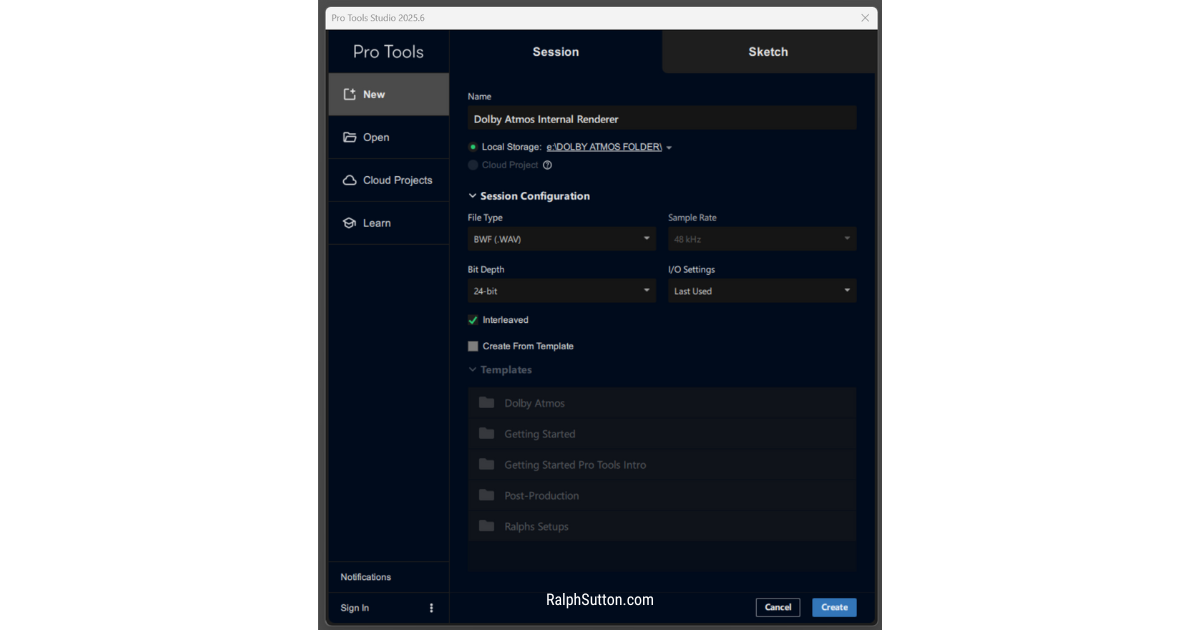
Pro Tools Dolby Atmos Session Setup selecting the Internal Renderer at 48 kHz / 24-bit ensures every project begins with the correct industry-standard settings.
Pro Tools Import Session Data importing the RalphSutton_Lv_Drums_072925 session ensures every drum track (kick, snare, toms, and overheads) is available for Atmos routing into Beds and Objects.
Bed Assignment - 7.1.4 Foundation
The bed is your main 7.1.4 mix foundation: Left, Center, Right, LFE, four surrounds, and four overheads. It’s the canvas your mix sits on, with objects layered on top.
Why it matters: Consistency across projects ensures reliable playback. Changing bed formats between songs can cause unpredictable results.
How to set it: In Pro Tools → I/O Setup → create a 7.1.4 bed bus labeled ATMOS_BED. Use this setup in every session to ensure your Pro Tools Atmos session setup is aligned with industry standards.
💡 Pro tip: Save your ATMOS_BED inside a Pro Tools template so every new Atmos project begins correctly.
Pro Tools I/O Setup creating a 7.1.4 Bed labeled ATMOS_BED ensures full speaker coverage with top front and rear heights, meeting Dolby Atmos music standards.
Object Management - Keep It Organized
Atmos allows up to 118 objects, but most music projects only need a fraction.
Why it matters: Too many objects = messy, CPU-heavy sessions.
Example workflow:
Vocals → Objects 1–2
Lead instruments → Objects 3–6
FX elements → Objects 10+
Pads/Ambience → Higher-numbered objects
💡 Pro tip: Assign objects consistently across sessions. This makes recalls, revisions, and exports seamless.
Bus Routing - To the Dolby Renderer
Your bed and objects must be routed into the Dolby Atmos Renderer via Dolby Audio Bridge (or MADI/HDX for external hardware).
Why it matters: Incorrect routing = no audio at export.
How to set it:
In Pro Tools → I/O Setup → route bed + object outputs to Dolby Audio Bridge.
In Dolby Renderer → assign each input channel to the correct bed/object path.
Test each path before mixing.
💡 Pro tip: I always run a short pink noise burst through each bus to confirm Atmos renderer routing before mixing.
Pro Tools I/O Setup window showing bed and object routing configuration used by Ralph Sutton to demonstrate Dolby Atmos signal flow and input organization in his Dolby Atmos Standards & Deliverables Guide.
Loudness Monitoring – Stay in Spec
Atmos loudness is measured differently than stereo. The target is -18 LUFS Integrated, with True Peak ≤ -1 dB.
Why it matters: If your mix is out of spec, it will fail QC.
How to check: Keep the Dolby Renderer Meter window open while mixing. Monitor levels throughout the session, not just at export.
💡 Pro tip: I treat loudness monitoring as my compass, always on screen, guiding me through the Atmos workflow.
Renderer Standards & Deliverables (2025 Update)
The Dolby Atmos Renderer is where all your hard work comes together. It’s the final stage that translates your Pro Tools session into a master-ready Atmos mix. This section covers the interface, configuration, binaural workflow, and delivery standards for ensuring your mix meets professional Atmos specifications.
Renderer Overview – Interface & Navigation
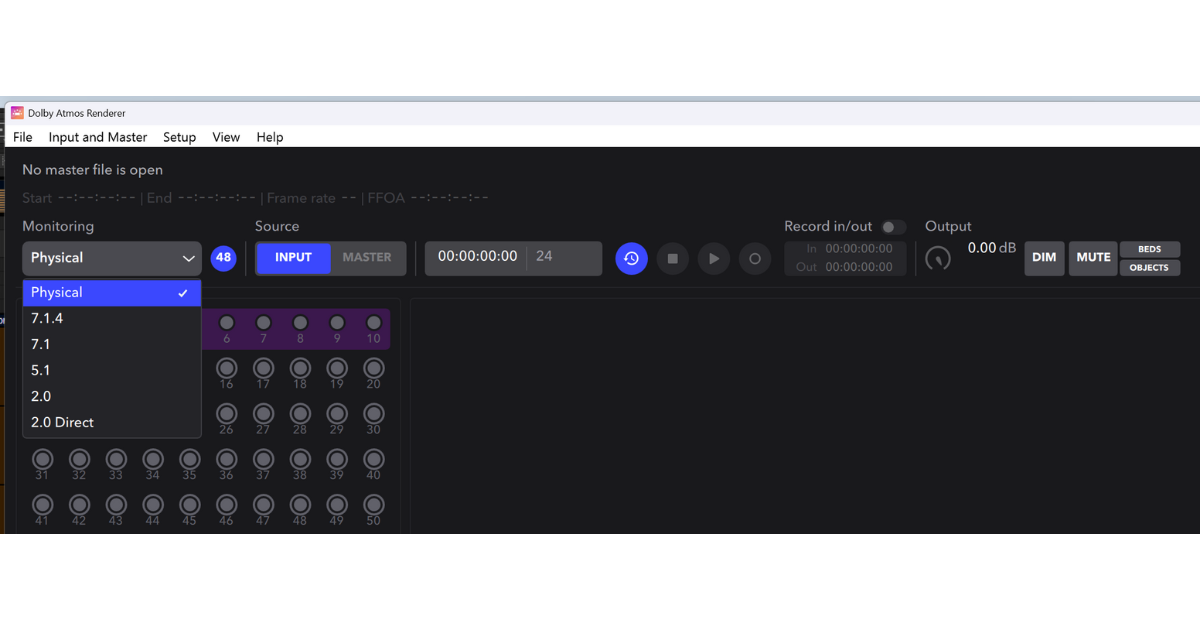
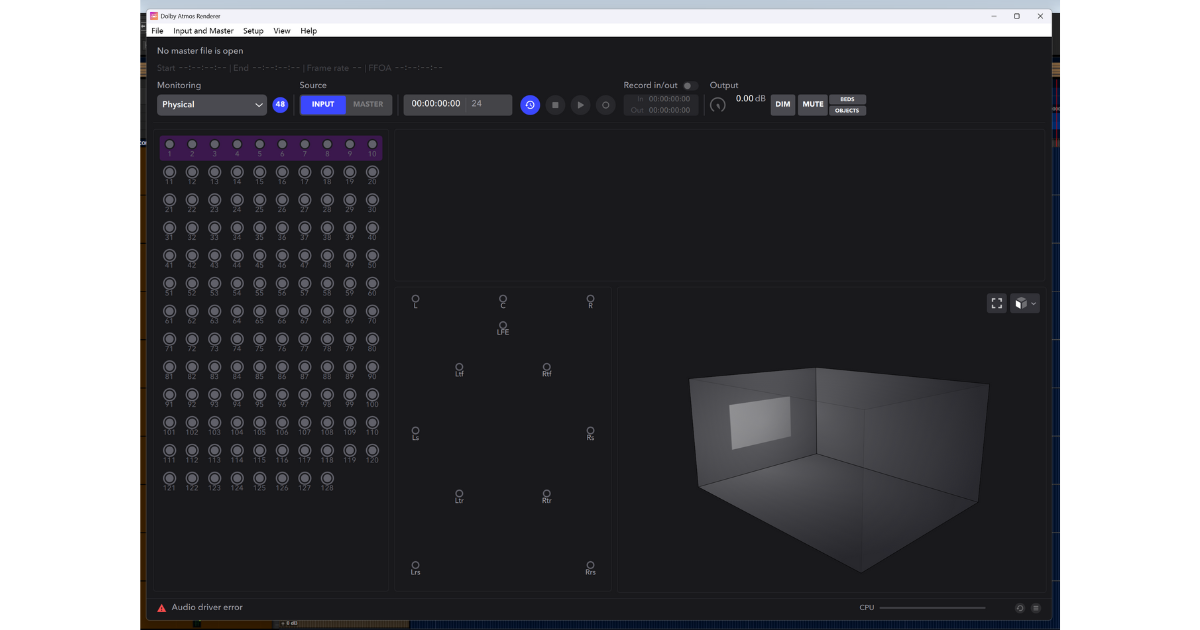
Dolby Atmos Renderer Physical View showing 7.1.4 bed and object layout used in Ralph Sutton’s Dolby Atmos Standards & Deliverables Guide.
The Dolby Atmos Renderer provides a clear visual layout of your beds, objects, and re-renders in real time. Its two primary views, Physical Renderer and Binaural Renderer, help you manage both speaker-based and headphone-based monitoring accurately.
Why it matters: Understanding these views ensures that your mix translates properly across all playback environments, from immersive theaters to streaming headphone formats.
Key interface areas:
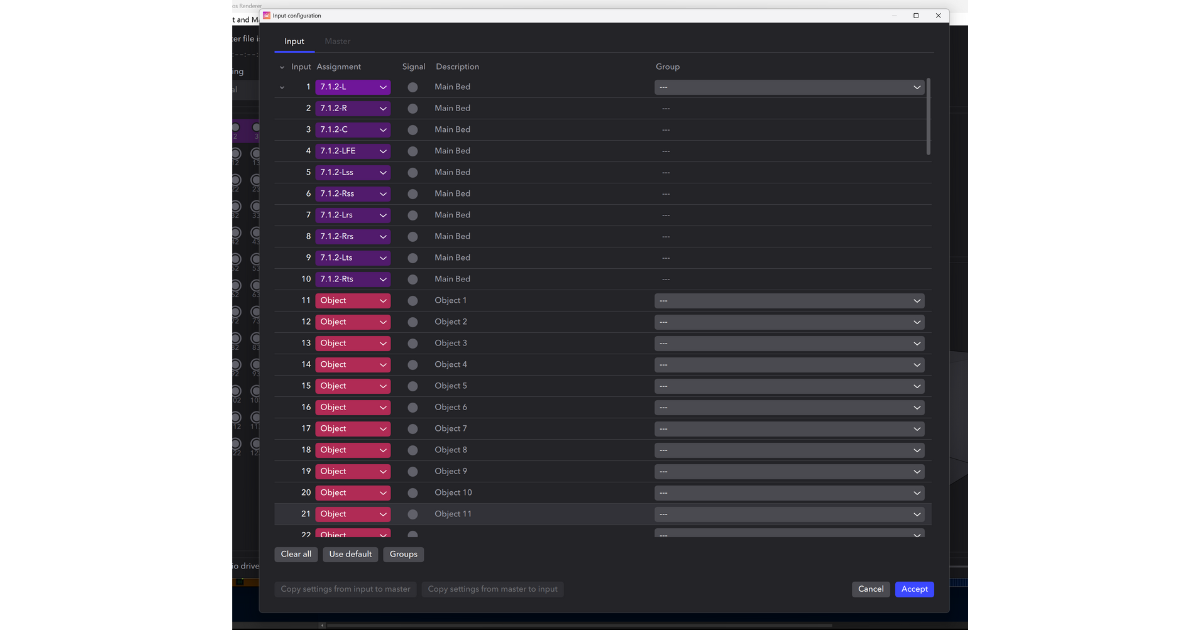
Input Configuration: Displays bed and object assignments coming from Pro Tools.
Room Setup: Defines speaker layout (7.1.4 for this guide) and routing matrix.
Output Meters: Show real-time level and metadata activity.
💡 Pro tip: Use dual-view monitoring, Physical for routing accuracy and Binaural for headphone realism, especially when working without external speakers.
Headphone / Binaural Monitoring Workflow
Dolby Atmos Renderer monitoring configuration dropdown showing available output formats used by Ralph Sutton to demonstrate headphone and binaural monitoring workflow in his Dolby Atmos Standards & Deliverables Guide.
When mixing in headphones, Dolby’s Binaural Render Mode lets you hear how each object interacts with spatial perception.
How to set it up:
In the Renderer, open the Binaural Settings tab.
Assign each object a binaural render mode:
Off: No spatial processing (center-focused).
Near: Feels close and intimate (great for vocals).
Mid: Moderate distance (use for instruments).
Far: Adds depth and space (ideal for ambience or FX).
In Pro Tools, make sure your monitoring path is set to Binaural through the Renderer output.
Why it matters: Proper binaural setup ensures that what you hear in headphones is an accurate representation of your mix in 3D space — crucial for modern streaming platforms like Apple Music and TIDAL.
💡 Pro tip: Start with all objects in Mid mode, then fine-tune using Near and Far for creative depth control.
Renderer Settings – Recommended Configuration
Dolby Atmos Project Format:
Bed format: 7.1.4
Maximum objects: Up to 118
Sample rate: 48 kHz / 24-bit
Project frame rate: 29.97 or 30 fps (depending on picture sync requirements)
Renderer Preferences:
Buffer size: 512 samples (recommended for stability)
Output path: Dolby Audio Bridge (for Pro Tools Studio/Ultimate)
💡 Pro tip: Keep both your Renderer and Pro Tools projects synced to the same frame rate and naming convention — this ensures session recall accuracy during revisions.
Dolby Atmos Renderer Input Configuration window showing 7.1.4 Main Bed and Object 1–11 channel assignments used by Ralph Sutton in his Dolby Atmos Standards & Deliverables Guide (2025).
Dolby Atmos Renderer Output Meters view showing bed and object routing layout used by Ralph Sutton to monitor signal flow and re-render outputs in his Dolby Atmos Standards & Deliverables Guide (2025).
Exporting ADM BWF Deliverables
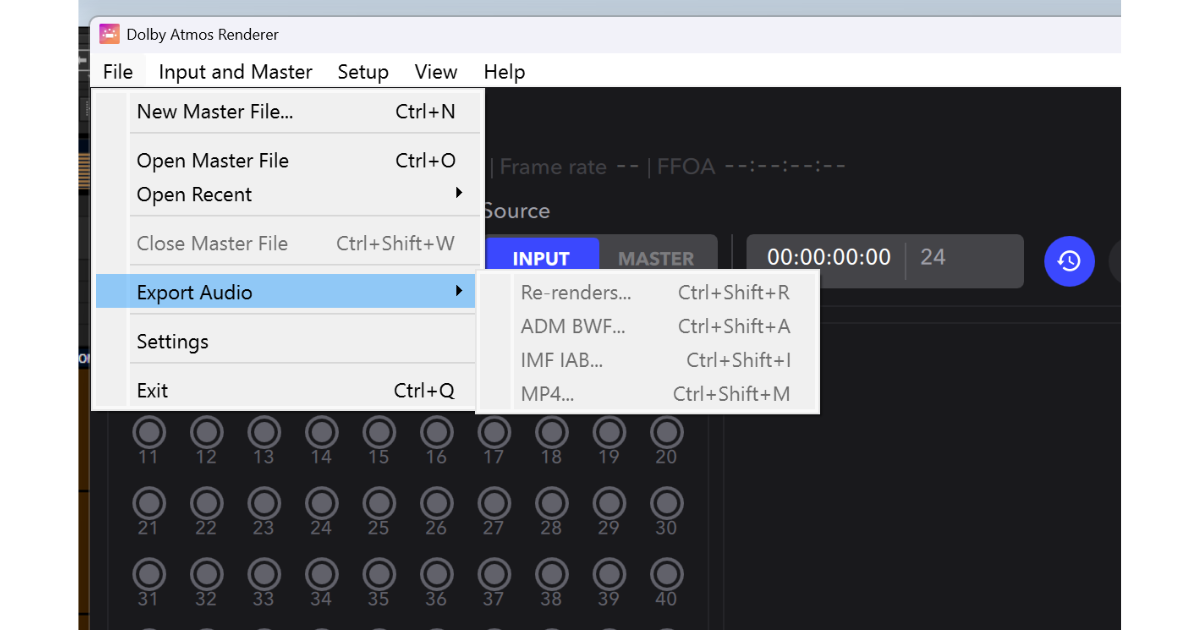
The final export is delivered as an ADM BWF (Audio Definition Model Broadcast Wave File) — the universal Dolby Atmos master file.
How to export correctly:
In the Renderer, go to File → Export Audio → ADM BWF.
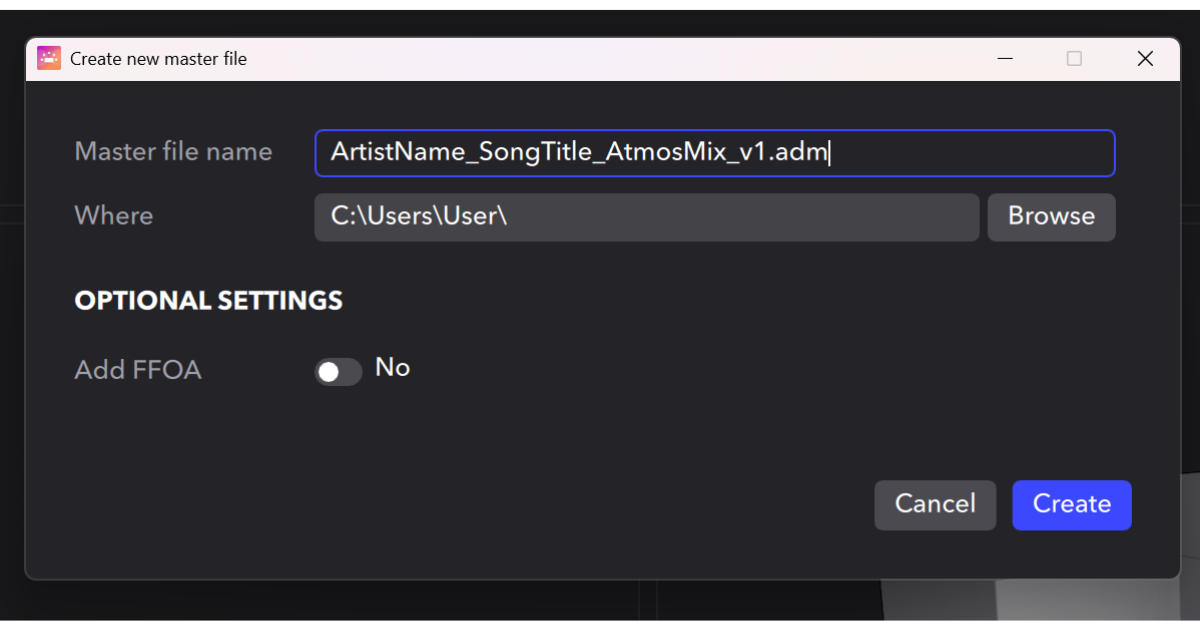
Select your session name and version: ArtistName_SongTitle_AtmosMix_v1.adm
Confirm file format: 48 kHz / 24-bit.
Include metadata such as Engineer name, ISRC code, and Project ID.
Save a mirrored copy in your project folder for archive.
Why it matters: This file contains all audio, metadata, and spatial parameters, ensuring your mix can be re-created perfectly anywhere in the world.
💡 Pro tip: Always audition the exported ADM in the Renderer before delivering. A one-minute playback test can catch routing or metadata errors before clients do.
Re-Renders & Delivery Versions
To support multiple playback environments, you’ll generate re-renders from your master ADM mix.
Recommended outputs:
Stereo (2.0) – for streaming and social previews
5.1 Surround – for broadcast and Blu-ray compatibility
Binaural (Headphone) – for personal and immersive streaming platforms
How to export re-renders:
In the Renderer, select Re-render → Export Audio.
Choose target formats (Stereo, 5.1, etc.).
Label each clearly:
SongTitle_StereoReRender_v1.wav
SongTitle_5.1ReRender_v1.wav
SongTitle_BinauralReRender_v1.wav
💡 Pro tip: Keep your LUFS and True Peak targets consistent across re-renders:
Integrated: -18 LUFS
True Peak: -1.0 dBTP
Dolby Atmos Renderer Export Audio menu showing Re-renders, ADM BWF, IMF IAB, and MP4 export options as used by Ralph Sutton in his Dolby Atmos Standards & Deliverables Guide (2025).
Final Checklist Before Delivery
Before signing off on your Dolby Atmos mix, verify these key points:
✅ Bed and object routing confirmed ✅ Renderer session saved and synced with Pro Tools session name ✅ ADM BWF exported and tested ✅ Re-renders created (Stereo, 5.1, Binaural) ✅ Loudness compliance verified (-18 LUFS / -1 dBTP) ✅ Metadata completed (ISRC, Project ID, Engineer name)
💡 Pro tip: Save both the Pro Tools session and Renderer project in a single folder labeled: Artist_Song_AtmosMix_v1 This keeps deliverables airtight for future recalls or label submissions.
Dolby Atmos Renderer Output and Monitor View showing the final verification setup used by Ralph Sutton to confirm loudness levels, routing, and output accuracy before delivery in his Dolby Atmos Standards & Deliverables Guide (2025).
Export Workflow – Step by Step
Exporting an Atmos project requires recording your final mix into the Dolby Renderer in real time.
Step-by-step workflow:
Route beds + objects from Pro Tools into Dolby Renderer via Dolby Audio Bridge.
In Dolby Renderer → File > New Master File.
Select the correct input config (matching Pro Tools outputs).
Record the full playback → Renderer captures your ADM BWF.
Save ADM BWF with standardized naming.
In Pro Tools → Bounce to Disk your stereo fallback master.
QC both files, including the binaural render in Dolby Renderer.
💡 Pro tip: I never deliver without running a full headphone QC in the Renderer. Most Atmos rejection issues come from poor binaural playback.
Dolby Atmos Renderer New Master File export window showing Ralph Sutton’s standardized ADM BWF export naming convention used in his Dolby Atmos Standards & Deliverables Guide (2025).
Deliverables Checklist – Downloadable PDF
Getting Dolby Atmos Deliverables Right
Delivering your Dolby Atmos masters correctly the first time saves headaches, costly revisions, and missed release dates. To make the process simple, I’ve created a step-by-step Dolby Atmos Deliverables Checklist (2025), the exact framework I use in professional sessions to pass QC the first time.
Here’s what this Dolby Atmos delivery specs checklist covers:
✅ ADM BWF Master → Properly routed, recorded through the Dolby Renderer, and named according to standardized conventions. ✅ Stereo Fallback Master → Required by every distributor to ensure full playback compatibility across platforms. ✅ Loudness Compliance → –18 LUFS Integrated, True Peak ≤ –1 dBTP (verified in the Dolby Renderer). ✅ Binaural Metadata → Correct Near / Mid / Far settings for headphone playback, QC’d before export. ✅ File Naming & Structure → Consistent, standardized naming across all deliverables. ✅ Final QC Check → Headphone QC, loudness compliance, and file verification completed before delivery.
👉 Download the Full Dolby Atmos Deliverables Checklist (PDF) (Insert Mailchimp form here for gated download.)
This PDF gives you a simple, repeatable process to ensure your Dolby Atmos mixes meet all delivery specifications and pass QC approval without issue.
💡 Pro Tip: I keep a printed copy of this checklist in my studio. Nothing leaves my system until every box is checked.
Common Mistakes Engineers Make
Even experienced engineers can run into issues with Dolby Atmos submissions. These mistakes usually have nothing to do with musical talent; they stem from workflow oversights and overlooked technical details. Here are the most common reasons Atmos mixes fail QC (and how to avoid them):
⚠️ 1. Leaving Binaural Settings at Default
The issue: By default, the Dolby Renderer assigns Mid to most objects. That means vocals, drums, and ambience all collapse into the same perceived distance in headphones.
The fix: Set binaural metadata intentionally. Vocals → Near, Drums → Mid, Pads / Ambience → Far.
🎧 Pro Tip: Always QC your binaural render before export; incorrect metadata is one of the top rejection causes.
⚠️ 2. Forgetting the Stereo Fallback Master
The issue: Not every platform or playback system supports Atmos. Without a stereo fallback, some listeners hear nothing or a collapsed mix.
The fix: Always bounce a stereo master alongside your ADM BWF deliverable, for example: RalphSutton_Lv_Drums_072925_StereoMaster_48k24.wav
⚠️ 3. Using the Wrong Sample Rate or Bit Depth
The issue: Submitting 44.1 kHz or 16-bit ADM files will fail Dolby QC and distributor intake checks.
The fix: Lock your session and Renderer to 48 kHz / 24-bit from the start.
🎚️ Pro Tip: Mismatched session rates cause more QC rejections than any other single error.
⚠️ 4. Poor File Naming Conventions
The issue: Vague or inconsistent file names create confusion for labels, distributors, and QC teams.
The fix: Use a consistent, descriptive format for every file: RalphSutton_Lv_Drums_072925_ADM_Master_v01_48k24.wav
💡 Pro Tip: Save a reusable naming template in your project folder before the first export, not after.
⚠️ 5. Skipping Final QC
The issue: Deliverables get uploaded without a proper final listen in both Atmos and Binaural. The fix:
Perform full playback in the Dolby Renderer before delivery.
✅ Final Step: Always run QC as the final playback pass before submission. Nothing leaves your system until it’s been checked for both technical and musical accuracy.
Authority in Action
The standards and practices in this guide aren’t theory; they’re the same Dolby Atmos professional standards I follow on real projects. I’ve worked in high-pressure environments where every Atmos deliverable had to pass QC the first time, with no margin for error.
Every project that met these benchmarks shared the same consistent workflow:
✅ Sessions locked at 48 kHz / 24-bit
✅ Loudness measured and verified in the Dolby Atmos Renderer Meter
✅ Deliverables exported as ADM BWF + Stereo Fallback, with full metadata compliance
✅ Final QC completed on both speaker arrays and headphones
This level of precision ensures every Atmos mix I deliver meets industry-approved deliverables, the standards labels and distributors expect, and the translation listeners demand across every platform.
Whether I’m producing and engineering for a major release or coaching independent engineers, my mission is to make sure every Dolby Atmos mix I touch passes QC the first time and delivers the same musical impact on any playback system.
When you follow these standards, you’re not just meeting specifications, you’re joining a small group of professionals who treat Atmos as both a creative art form and a technical discipline.
❓ Frequently Asked Questions (FAQ)
What deliverables are required for Dolby Atmos music releases?
The minimum Dolby Atmos deliverables include:
ADM BWF Master: the official Dolby Atmos master file.
Stereo Fallback Master for platforms or devices that don’t support Atmos.
Some labels may also request stems, instrumentals, or loudness reports as part of their submission requirements.
Why is 48kHz / 24-bit the standard for Atmos instead of 96kHz?
48 kHz / 24-bit is the official Dolby Atmos delivery standard across streaming platforms. It keeps file sizes manageable and ensures compatibility. While 96 kHz may offer extra detail for audiophile or archival projects, most distributors still require delivery at 48 kHz; higher rates are typically downsampled before release.
Do I still need a stereo master if I’m mixing in Atmos?
Yes. The stereo master is essential because not all playback systems support Dolby Atmos. Without a stereo fallback, your mix won’t meet deliverables requirements, and some listeners may not hear your track at all.
What’s an ADM BWF file, and why is it required?
An ADM BWF (Audio Definition Model Broadcast Wave File) is the official Dolby Atmos master format. It contains all audio, object metadata, and spatial positioning information required for playback. Distributors require this file for every Atmos release to ensure it passes QC (Quality Control) approval.
How do binaural render settings affect headphone playback?
Binaural metadata settings control how objects are rendered in 3D space during headphone playback. For example:
Vocals → Near
Drums → Mid
Pads / Ambience → Far
If everything is left at the default Mid setting, your mix will sound flat and lose spatial depth, one of the most common Atmos rejection reasons.
Can I use Pro Tools to deliver Atmos mixes without the Dolby Renderer?
No. Pro Tools handles the mixing, but the final Dolby Atmos deliverables must be recorded and exported through the Dolby Atmos Renderer. That’s the only way to generate an ADM BWF master file suitable for industry-approved submissions.
🎬 Final Word
Dolby Atmos isn’t just another format; it’s the new professional standard for how modern music is mixed, delivered, and experienced. It demands both technical precision and creative excellence, and when done right, it brings music to life in ways stereo never could.
Even the most inspired mix won’t make it past release approval if it doesn’t meet Dolby Atmos QC (Quality Control) standards. That’s why every section of this guide is designed to help you deliver mixes that are industry-approved, technically accurate, and musically powerful, the kind of work that stands the test of time.
I’ve applied these same methods on my own Dolby Atmos projects and client sessions, ensuring every deliverable meets the exacting requirements of Dolby, Apple Music, and TIDAL. By following these principles, you’re not just delivering mixes, you’re elevating your craft to a level that commands respect from labels, distributors, and fellow professionals.
🎧 If you need help, I’ve got you. Whether you’re preparing your first Atmos release or want a full QC-ready Dolby Atmos mix from start to finish, I can help you meet every deliverable, standard, and expectation.